Features in the order a sale uses them, from setting up lots to the vendor statement. The last section shows how SoldTo is built around sale day.
Setting up the sale
Put the sale, its people and its lots in before the day, with the money rules set once.
- Sales
- Each sale has a title, description, Australian address and start time.
- Vendors and bidders
- Contacts and businesses live in one address book. Each sale links them as vendors or bidders, and bidders get a number.
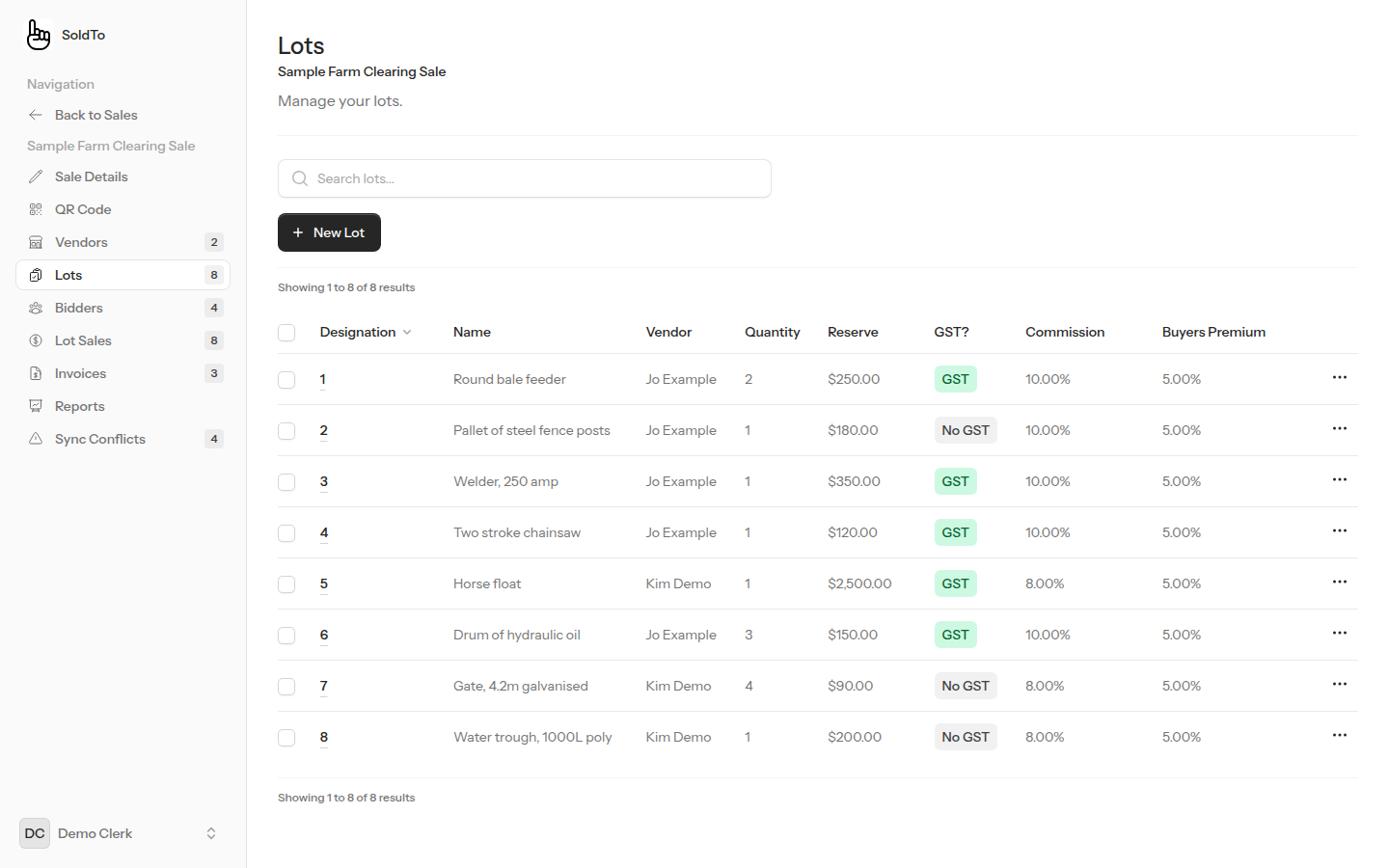
- Lots
- Lot number and sub lot (such as 12A), description, quantity, reserve, GST on or off, and notes.
- Commission and premium
- Commission is set per vendor. Buyer’s premium is set per sale. Either can be overridden on a single lot.
- Bulk changes
- Switch GST, commission or buyer’s premium, or move lots to another vendor, across many lots at once.
- Run sheet
- A printable run sheet with blank Qty, Price and Bidder columns for writing on at the ring.
Selling on the day
Clerks work on a phone or tablet, and recording a lot does not need a connection.
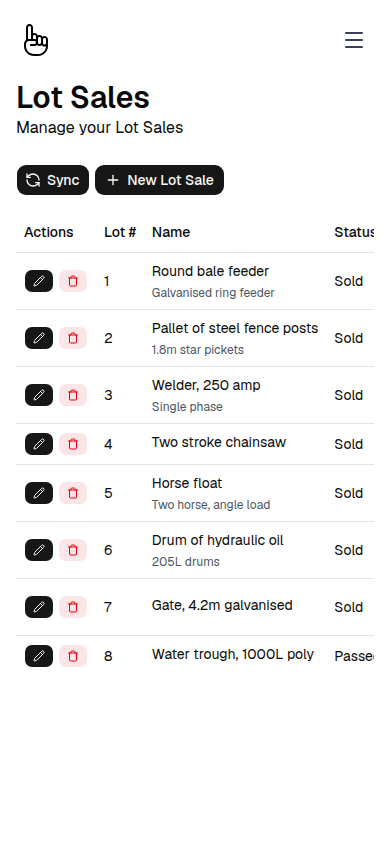
- Lots app
- A web app that runs in the browser on a phone or tablet. It keeps its own database on the device.
- Outcomes
- Sold, Sold With (linked to another lot at $0), Passed In (records the highest bid and bidder) or No Bids.
- Pricing a lot
- Enter a lump sum or a price per item. A lot cannot be sold for more than its quantity.
- Offline
- Create lots and record sales with no connection. How offline works.
- Sync
- Press Sync to send the device’s records to the SoldTo server and pull the latest. A conflict goes to office staff to resolve.
Invoicing
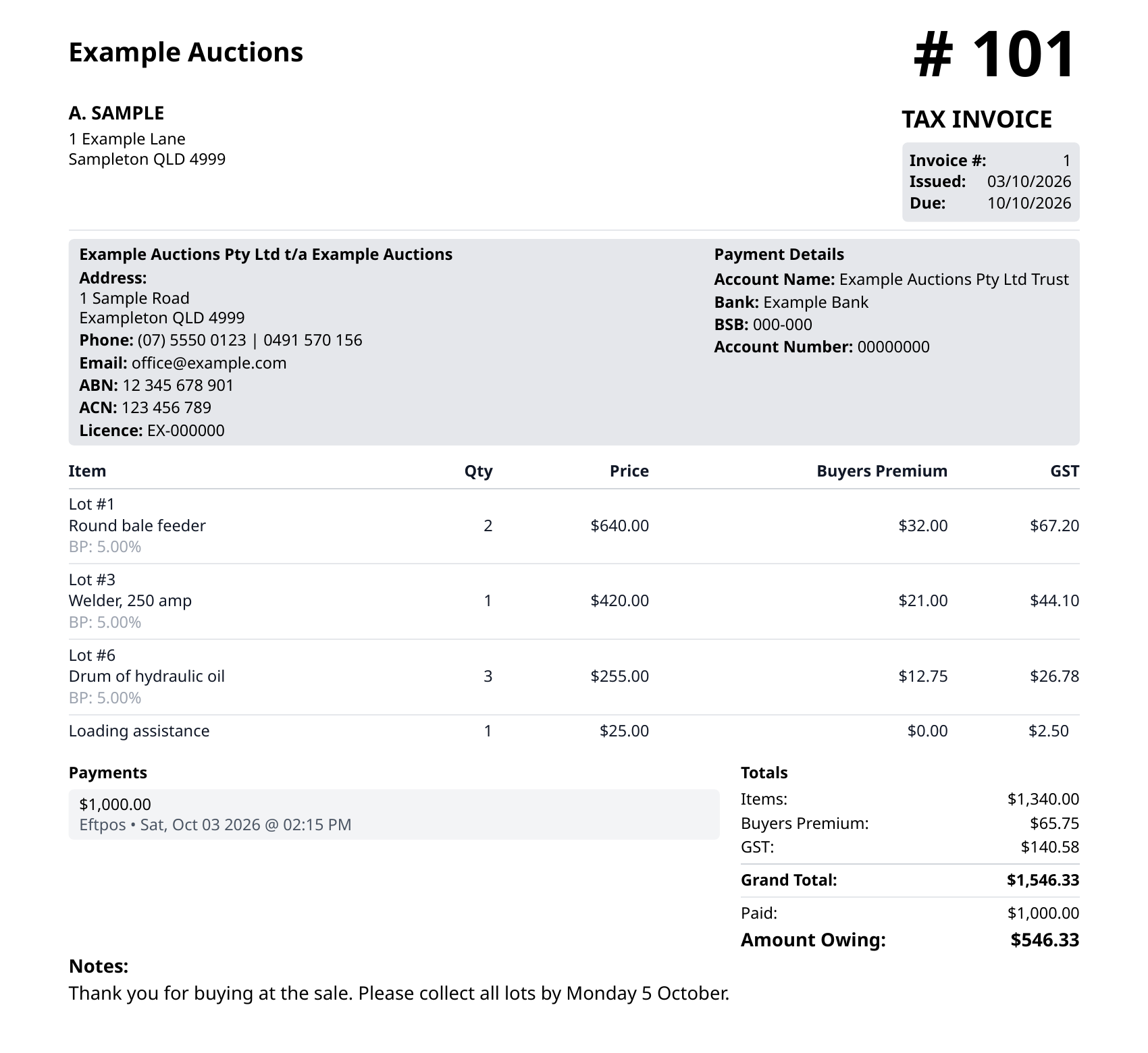
A Tax Invoice for each bidder, built from the lots they bought.
- Generate
- Create invoices one bidder at a time or in bulk from sold lots, and add free-text line items with their own GST setting.
- GST
- GST at 10%, set per lot. Where a lot carries buyer’s premium, GST is worked out on the price and premium together.
- Buyer’s premium
- A percentage of the hammer price, set for the sale or overridden per lot.
- Invoice contents
- Tax Invoice heading, ABN, ACN, licence number, BSB and account number. Lot notes show as a warning on the invoice.
- Fixed company details
- Company details are saved onto each invoice when it is made, so later changes do not rewrite old invoices.
- Payment terms
- When issued, or 7, 14, 21 or 30 days.
- Send the invoice as a PDF to a contact, a business or a custom address, singly or in bulk. Each invoice shows Not emailed, Queued, Sent or Failed. Emailing uses the internet, so send from the office.
Payments
Record what each bidder pays, in as many parts as they need.
- Methods
- Cash, Cheque, Credit/Debit and Eftpos.
- Part payments
- Record more than one payment against an invoice. The outstanding amount updates as you go.
- Card surcharge
- If a sale has a card surcharge, it is added automatically to Credit/Debit payments and shown on the invoice.
Settling with vendors
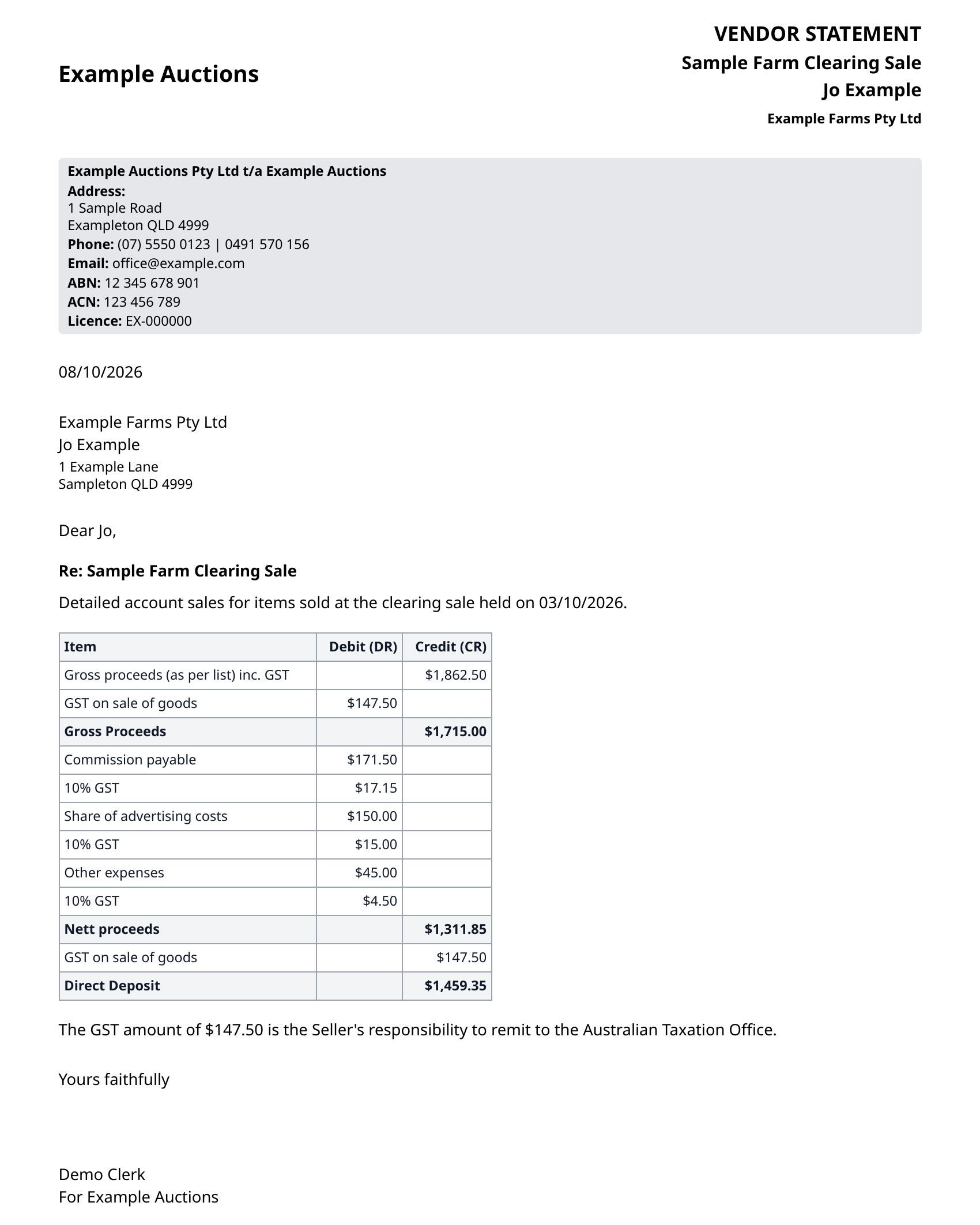
A statement for each vendor that shows how their proceeds were worked out.
- Vendor statement
- A PDF with gross proceeds, commission, advertising and other expenses (each with GST), and nett proceeds.
- Commission
- Worked out on the sell price only. Buyer’s premium stays out of the vendor’s figures.
- Cover letter
- Add a cover letter to the statement if you want one.
- GST note
- The statement says GST on the sale is the seller’s responsibility to remit to the ATO.
Reports
The questions an office asks after a sale, answered as PDFs.
- Lot sales
- Every lot sale, filtered by vendor and status.
- Payments
- Payments received, by method.
- Outstanding
- Invoices that are not fully paid, and bidders who bought lots but have no invoice yet.
- Dashboard
- Counts, revenue, the outstanding amount, top lots and lots by status for the sale.
Printing
Invoices print on site, with no internet needed.
- Invoices
- Print an invoice from the back office to a network printer, one to four copies.
- Everything else
- Reports and the run sheet open or download as PDFs, ready for any printer.
- Printers
- Network printers on the same local network as the SoldTo server. No internet connection is needed to print.
Sold in person
Bidders bid with the auctioneer at the sale, and clerks record each result on a phone or tablet.
Sync when you are in range
Clerks keep selling with no signal. When a device is back in range of the SoldTo server, the clerk presses Sync and the sales go up.
Payments recorded as taken
Staff record what each bidder pays on the day: cash, cheque, credit or debit, and Eftpos.
PDFs for the office
Invoices, vendor statements and reports are PDFs, ready to print or save.
Lots entered your way
Add lots in the back office before the sale, or on a phone or tablet on the day.
Reserves are your call
A reserve is recorded and printed on the run sheet. The auctioneer and clerk decide what to do on the day.
One lot record for any sale
Lots hold a description, quantity and price, so the same lot works for livestock, machinery, vehicles and equipment.
Say what you sell, how many lots a sale runs to, and where your venues are short on signal. We will reply with how SoldTo would handle it, and a quote.